Memo table · a passing thought
Choose Write a memo at the memo table. It goes into your default memo pad, ready to search or organize later.
evot.io GUIDE
Take small steps, try something new with your clone, and reflect through writing and conversation. Find memo tools and integrations whenever you need them.
Start in the hideout
Keep taking small steps through memos, a diary, or reading notes. Use your marshmallows to try new experiences with your clone, then come home and reflect on your own ideas and tastes.
Select an object or your clone to see what it does.
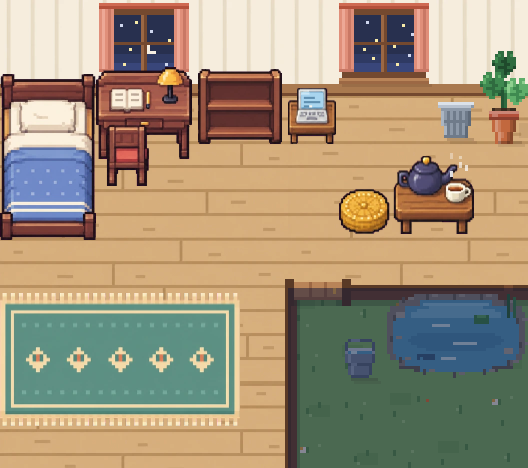

Use the arrow keys to choose an object. Press Enter or Space to toggle the campfire, or Escape to close its description.
The neighborhood is not locked behind a daily task. Look around first and keep recording and exploring at your own pace.
Writing and rewards
Start by leaving something, rather than trying to write perfectly. Your records can inform conversations with your clone.
Choose Write a memo at the memo table. It goes into your default memo pad, ready to search or organize later.
Open the diary on the desk and write in your own space. Read your entry alongside your clone’s day, and edit your own writing whenever you want.
Create a book with a title and add pages of reading notes. You can also write in books brought back from the bookshop.
Answering a question the owl brings is another way to reflect. Your answers can give your next conversation something to build on.
Earn them through records and conversations. Collect the ones roasting at the campfire, then care for your clone or use them on orders and activities around town.
A separate balance used for AI replies and readings. Open Quests in your hideout for memo, diary, reading and shop-visit goals and credits you can claim.
Activities have their own conditions and daily limits. Empty writing or repeated saves do not keep earning rewards. Marshmallows do not cover AI conversations when you have no AI credits.
Outings in town
Choose Go outside at the end of the path on the left of your hideout. Pick a place on the town map, or choose the hideout to return home. You decide which place goes on which empty lot with Arrange on the map. Places not on the map yet can be placed there too.

100 residents live in town. When you run into one at the next seat in the cafe, bar, or bookshop, or on a park bench, say hello. The more days you talk, the closer you get, and some stories only come out once you're close.
Shopkeepers and residents remember what you talked about. They don't see your memo pads or diary. Meet again and they pick up where you left off, and a chat you started in the cafe can carry on when you meet in the park.
Open the Regulars' notebook in your hideout to look back on where you stand with each place and resident, the moments you shared, and the stories you heard.

Mr. Oh and Haru, the part-timer
A small cafe run by Mr. Oh and his part-timer Haru. Order a coffee and you can talk with both of them, and with the guests at the next table, for the rest of the day.

Ms. Yoon and Galpi the cat
When you walk in, your clone hands over a reading note, and Ms. Yoon recommends books from it. The note holds the books on your shelf, a few lines you recently wrote in them, and your interests. Your memo pads and diary are never included. Use marshmallows to add a favorite to your own shelf. If the map shows it as coming soon, it hasn't opened yet.

Gen-san
A small counter kept by Gen-san. Order a drink and he tells you the story behind it, and he'll listen to yours too. On your first visit he checks that you're old enough to drink, and alcohol-free drinks are on the menu.

Grandma Wolha and Sori
Get a saju reading from Grandma Wolha or a tarot reading from Sori. Today's card is free, one a day. It's meant for fun. You enter your birth date only for saju, and you can delete it at Wolhadang anytime.

André and the lab's guests
A small investment lab kept by André. Write the stocks you hold or are watching, or topics you're curious about, on your own chalkboard, and the lab's TV picks out news related to them. Watching the TV news uses no credits. Note in the notebook why you started watching a stock, and talk with André about market news or what you're learning about investing. André never recommends stocks or tells you when to buy or sell. Before your first talk he asks whether your conversation may be sent to an AI company, and the chalkboard, notebook, and TV work even if you say no.

Neighbors, a stray dog and a stray cat
A small hilltop park. The sun sets and the moon rises with your own clock. Stand at the fence and look over the sky and the town, or say hello to a neighbor who's out in the park. Watching the sky is free; conversations use a few credits per message.
What each place has in store is for you to find. Drop by and see.
When ‘With your clone today’ appears in your diary, read the stories and add your own thoughts. Use what you learn about your tastes and ideas to choose what to try next.
Orders, books, and paid readings use marshmallows. AI conversations with shopkeepers and residents, and interpretations, use separate credits. Check each place for actual prices and availability.
What people in town remember never mixes with what your clone remembers about you. Do not base important real-life decisions, such as investments, on a fortune reading or a talk at the lab.
Your Clone is your personal Vot. It learns about you from your notes and conversations. The better it knows you, the more it can work through ideas from your perspective and organize related thoughts.
What is the most urgent problem in my Feature planning memo pad?
It's not that people don't want search. Most of them can't find the search box, and that looks most urgent.
Put three cells into Feature planning?
Writing cells, asking Vots from a cell, and writing a diary or books in the Hideout all give your Clone material to learn from. You can leave out memo pads you don't want it to see under Settings → Clone.
Open your Clone from the “Vots” tab at the very bottom of the screen and pick a way under “Learning about me.” “Let your clone read your notes” has your Clone read what you've written and work out how you think. “Answer questions about yourself” points you to today's questions from the Hideout owl. You get one free run a month on the Free plan, and one a week on paid plans.
Use Talk in the Hideout to chat with your Clone, and it remembers what it learns about you from the conversation. Tap your Clone to open its “Mind,” where you can see what it remembered and fix or remove anything.
The Hideout is your Clone's room. Stop by, say something, and keep it fed with marshmallows — it brings back news that fits your interests and remembers what it learns about you. Open it with the “Hideout” tab at the very bottom of the screen.
Talk
Chat about your day. Talking roasts marshmallows by the campfire.
Tap the furniture or the pond yourself
To give your Clone something to do, tap a piece of furniture such as the desk, or the pond. The things it can do there appear; pick one and your Clone goes and does it. The more it does, the hungrier it gets, so keep it in marshmallows. Tap an empty spot on the floor, or press the arrow keys, and your Clone walks there.
Mind
Tap your Clone to open its “Mind” and see the topics on its mind in a thought bubble. Tap a topic or a memory to see the memos, diary entries, book pages and answers connected to it, and look back on what you were thinking and when. It's open on the Free plan too.
Mood
Your Clone reads your diary and your talks together to sense your mood, and its own mood follows. See its current mood at the top of the “Mind” view that opens when you tap your Clone. To stop it following your mood, tap “Me” at the very bottom of the screen and turn off “Your clone follows your mood” in the Hideout tab. It keeps only the current mood, not what you wrote.
Together so far
Good days with your Clone, and days you talked it through and got back on your feet together, add up in “Together so far” at the bottom of the Mind view. Pass a milestone and your Clone brings you a small gift.
Dress up clone
Choose “Decorate” → “Dress up clone” under the room to change how your Clone looks. Anyone can switch to a free character by picking one of the 100 town residents (a resident you pick as your Clone no longer appears in town); making a new character or redrawing the hairstyle or outfit needs the Basic or Pro plan and uses credits.
Table
Tap the table and choose “Write a memo” to jot a thought down right away. Memos go into your default memo pad, and your Clone sorts them into the right memo pads once a day. “Open memo pads” opens your memo pads, and “Check the phone” shows the memos you sent today from messengers like Telegram or KakaoTalk.
Today's questions
Each day the owl in the yard brings three questions. It holds a scroll while any are left and drops it once you've answered them all. Tap the owl to open them. Press “Read” and your Clone reads the question out in the talk window; answer there and keep talking if you like. Skip any you'd rather not answer with “Skip for today.” Your answers help your Clone get to know you.
Diary
Tap the desk to open the diary and write about your day. When you save, it gets a title you can tap to change. Your Clone reads it and leaves a comment right away, sometimes pointing back to something you wrote before. Write back in “Say something back” under the comment and your Clone answers once more when it has something to add. Ask for “Read the diary” at the desk and your Clone reads what you wrote, and it shows up in what your Clone says to itself.
Fishing
Tap the pond and choose “Go fishing,” and your Clone brings back news that fits what you're into lately. Tap the bucket to see what it caught and open the originals.
Bookshelf
Tap the bookshelf, make a “New book,” and write down in it what your reading made you think. The book goes on the shelf, and your Clone takes it down and reads it. When you write a page, your Clone comments on it like a diary entry.
Trash bin
Tap the trash bin, write down whatever you want to get off your chest, and throw it away. Your Clone reads it and says a word back, and the note isn't kept in the Hideout.
Laptop
Write a line in the laptop's “Ask now” tab and your Clone does it once — looks things up or draws a picture — then stacks the result as a card in that tab. On Pro with your computer connected, tick “Use my computer” to hand it to your machine. For things to repeat on a schedule, make a routine in the “Recurring” tab. Include ‘show it as a chart’ or ‘organize it into a mind map’ in the instruction to see that format in the card.
Campfire
Marshmallows roasted while you talk are set by the campfire. Light it and you can even hear the wood crackle.
ExploringComing soon
Soon your Clone will step outside its room and experience all sorts of virtual worlds. How far it will go, even we don't know yet.
Press Talk in the Hideout and a dialog box opens over the room. Bring an idea or something on your mind, and your thinking sorts itself out as you talk. Your Clone can read the cells in your memo pads, and may offer to write what you conclude into cells. See the whole exchange and any suggestion cards under “Earlier,” and use its arrows to look back at past days.
When your thoughts are tangled
Out of what I've written lately, what do I keep putting off?
TalkWhen you don't know where to start
Sometimes your Clone asks you something first in a speech bubble in the Hideout. Press “Let's talk” to start from that question — even short replies keep the conversation going.
Let's talkWhen you want to hear a topic from several angles
Call several Vots with @ in a memo pad cell. Each answers the thought in that cell in its own character, and the answers stay with the cell.
@Vots in a memo cellWhen you want to tell your Clone about yourself
Each day the owl in the Hideout yard brings three questions. Press “Read” and your Clone reads one out; answer as you would in a chat, and your Clone gets to know you from your answers.
Today's questionsA cell holds one note, and a memo pad groups cells on the same subject. If you're not sure where to write something, start in your default memo pad. You can move it into a topic's memo pad later.
The search box is buried inside the third tab, so people seem to give up before they even look.
It's fine if you haven't decided where it goes. Write the thought down there before it's gone. Tap the table in the Hideout and choose “Write a memo” to drop it straight in, or open your default memo pad from the “Memos” tab at the very bottom of the screen and write it as a cell. Make a new cell with the + button at the bottom right of the screen; on a computer you can also press Shift + Enter while writing to start the next cell.
Press Auto-tagging on a cell you've written and it gets a title and tags that fit, so it's easy to find later. Reach for cell links, related-cell gathering, and AI improvement in the cell's “More” menu when you need them.
Your Clone sorts what piles up in your default memo pad into the right memo pads once a day. The first time you visit the Hideout that day, if there are three or more new memos, it moves them, and next time you come to the Hideout it tells you what went where. To put one somewhere else, move it from that cell's “More” menu. To turn this off, switch off “Tidy the default memo pad” in the Hideout tab of Settings. To move a cell yourself, press the “Memos” tab at the very bottom of the screen to open your memo pads, create one with “Add new memo pad”, then choose “Move to another memo pad” from the cell's “More” menu. To sort them right now, open your default memo pad and press the wand at the bottom right (“Organize this memo pad”) and choose “Sort these into the right memo pads.” Your Clone suggests where each one should go, and nothing moves until you confirm.
Comparing thoughts you've collected
Press Pin on the cell you want as your reference and it stays at the side. Go through the other cells one by one, set them next to it, and your thinking sorts itself out.
PinWhen similar thoughts are scattered around
Press Gather related cells and similar thoughts show up as cards. Link the ones that follow from each other and the thread of your thinking appears.
Gather related cells · Cell linkWhen a thought comes while walking
Connect the messenger you use most, then send a note to the evot.io channel there. It's saved as a cell in the memo pad you chose.
Messenger integrationManaging to-dos
Type [] at the start of a line and press Space to make a checkbox. Tick things off as you finish them.
CheckboxWhen you want to keep finished thoughts
Archive the cells you want to keep from the cell's “More” menu. Filter them by tag at the top of the archive, and restore them to the memo pad whenever you need them.
Archive · Tag filtersType a marker such as #, -, or [] at the start of a line and press Space to create a heading, list, or checkbox. To make text bold or italic, wrap it in markers. This way of formatting with markers is called Markdown.
Type
# A clear title[] Compare competitors' pricingBecomes
The supporting thought continues as normal text.
A useful first line
# A clear titleStart the first line with # and it shows large as the cell’s title.
Type a marker at the start of a line and press Space. A divider appears as soon as you type ---.
# ## ###Headings 1–3
-Bullet list
1.Numbered list
[]Checkbox
>Collapsible toggle
"Quote
---Divider
```Code block
Put markers on both sides of the text you want to format, as in these examples.
**bold**Bold
*italic*Italic
~~strikethrough~~Strikethrough
`code`Inline code
ArrowType -> and press Space to turn it into an arrow (→), even within a sentence.
Type | col 1 | col 2 | and press Enter, or paste a Markdown table → editable table
Select text and paste a URL → link
Use ⌘ on Mac and Ctrl on Windows or Linux.
A cell is in either writing mode or command mode, and each mode has its own shortcuts.
The cursor is blinking inside the cell and you can jot down your thoughts. Click a cell, or press Enter in command mode, to get here.
You're not typing; you're selecting whole cells. Press Esc in writing mode to get here, then move between cells with the arrow keys.
A Vot is a character agent with its own personality and point of view. Call one while you jot down your thoughts and it reads what you've written and thinks it through with you right there. The answer stays in the cell and leads into your next thought.
AI chip equipment stock: rechecking my thesis
Critical ThinkerPoint out the weakest link in this investment thesis
The backlog leans heavily on one customer's spending plan. If that plan slips, two of your three reasons weaken together.
While writing a request to a Vot, press Tab and your Clone writes the request for you. If you haven't typed anything yet it drafts one; if you're mid-sentence it finishes it.
Start a new line in a cell and type /. Write your request in the box that opens and press Enter. Your Clone reads what you've written and answers.
Type @, choose a Vot, write your request, and press Enter. Create a Vot from the “Vots” tab at the very bottom of the screen, or open “Hub” there to subscribe to Vots other people publish.
The Vot's answer stays in the cell, including its charts and mind maps. Ask a follow-up below the answer, or ask the same Vot to organize it in a different format.
Type / at the start of a new line to open a request to your Clone. To ask another Vot, type @ and choose one. Write your request and press Enter to send it. The Vot you choose takes the place of “Critical Thinker” in the examples.
When a thought needs to be made concrete
/Spell this thought out in more concrete terms
CloneWhen you want to find the holes in your thinking
@Critical ThinkerPoint out the weakest part of this argument
VotWhen you want to find something you wrote before
/Find what I wrote about interest rates last month and sum it up
Clone · your MemosWhen you want to ask about a file you uploaded
@Critical ThinkerPull out only the risk factors from the annual report I uploaded
PDF, image, or file in the cellWhen you want a Vot to remember something
@Critical ThinkerI prefer explanations written out in prose over tables. Remember that
MemoryWhen you want material gathered from the web
@Critical ThinkerFind this month's rate decision on the central bank's site and sum it up
Web reading & collectionSummarize long articles and videos, turn numbers into charts, or organize ideas into mind maps. Tell your Vot what you want and it chooses the tools it needs. It can also create images and work with Notion or your computer.
Video · youtube.com
Post · blog
Report · PDF
/What do these three links have in common?
All three are about cutting costs. The video gets into concrete numbers from this point. 12:30
Visualizations need no setup. Optional tools such as web search can be turned on or off per Vot. Connect Notion and your Claude or Codex before using them.
When you want a YouTube channel's new videos summed up
/Sum up the latest videos on the TEDx YouTube channel (youtube.com/@TEDx)
Web reading & collectionWhen you want one long video summed up
/Sum up this video: youtube.com/watch?v=I16iWYA1DZc
Web reading & collectionWhen you want a news site's latest stories summed up
/Sum up the latest news on Hacker News (news.ycombinator.com)
Web reading & collectionWhen the information is behind a login
/Use my computer to open x.com and sum up the latest AI news
My Claude or CodexWhen you want an image explained
/Interpret the graph in this image
Look at cell imagesWhen it's written down in Notion
/Find last week's meeting notes in Notion and pull out only what was decided
NotionTurn optional tools such as web search and image generation on or off in the Tools card. Basic tools such as visualizations and reading memo pads need no setup.
Turn on web search for up-to-date information, or Notion to read your Notion documents. Connect tools that need an external service under Settings → Integrations first.
Say something like ‘Compare this material in a table,’ including what to read and how to present it. You don't need to learn tool names or special commands.
Your Vot uses these when needed, without extra setup. It only reads memo pads and files it is allowed to see.
Search and read memo pads
Finds and reads related cells in the current memo pad and its linked memo pad. When asked, it can also write cells in the linked memo pad.
Read attachments
Finds the relevant part of PDFs and documents uploaded to the memo pad.
Look at cell images
Looks at images in cells when answering.
Remember
Keeps important things it learns in conversation and uses them in later answers.
Suggest tidying
Suggests merging or moving cells, creating a memo pad, and similar tidying. Nothing changes until you confirm.
Paste a web article, YouTube video, or PDF link into a cell and ask your Vot. It finds the part you asked about in the source and adds numbered citations. Give it a blog address to read recent posts, or a YouTube channel address to read its latest videos.
Summarize a video around my interests
/Pick out the parts of this video that are likely to interest me and summarize them. Explain why they're worth my attention
YouTube · Personalized summaryCompare several links
/Put what these three articles share and where they differ in a table
Up to 10 at onceApply what I read to what I'm currently planning
/Find things in this article that I could apply to what I've been planning lately. Start with things I can try right away
Web articles · Apply to my plansRecent blog posts and channel videos
/Summarize only the recent posts on this blog that are about interest rates
Blogs · YouTube channels · news sectionsPDF papers and reports
/Give me just this report's conclusion and the numbers behind it
PDF linksLinks behind words, too
Links copied from Notion or the web — like "this article" or "reference" — are followed and read.
Paste documents as they areCall a Vot from a cell, or talk in the Hideout, and ask it to ‘show this as a chart.’ See the result right in the answer, with no extra setup. Tables and charts from the Hideout are under “Earlier.”
Try asking about records you have collected, as in these examples. Use your own memo pad names and choose the period and comparison criteria you want to explore.
Organize collected ideas by topic
/Read the ideas collected in this memo pad, group similar topics together, and organize them into a mind map
Mind mapExplore investment and partnership ties between companies
/Which companies invest in or partner with each other? Show the relationships recorded in my Company Research memo pad as a graph, and label each type of connection
Relationship graphSee where your money went this month
/Where did most of my money go this month? Add up spending by category in my Budget memo pad and show it in a bar chart
Bar chartSee how much work you finish each week
/Show a line chart of how many tasks I finished each week in my Work memo pad. I want to see how that changed over the past two months
Time seriesSee how often you make small purchases
/Show a histogram of this month’s individual payment amounts in my Budget memo pad, grouping amounts into $10 ranges. I want to see whether I make lots of small purchases
Histogram · distribution by rangeCompare the products on your shortlist
/Compare the laptops collected in my Product Research memo pad by price, weight, and battery life. Put them in a table to help me choose
TableSet a task and a schedule, and your Vot runs it each time, leaving the result as a new cell in the memo pad you choose. Results can include tables, charts, and mind maps as well as text. Turn on notifications to receive results in your connected messenger too.
Read the new posts on TechCrunch (techcrunch.com) and sum each one up in three lines
The example sentences go into the routine's “Instruction” field as they are.
Get new posts every morning
Read the new posts on TechCrunch (techcrunch.com) and sum each one up in three lines
Weekdays 8:00 AMLook back on the week
Read the cells I wrote in this memo pad this week and sort them into what I did and what to continue next week
Fridays 6:00 PMKeep up with a competitor
Read what's new in the Notion release notes (notion.com/releases) and sum up only the changes that overlap with our product
Mondays 9:00 AMCheck places that need a login
On LinkedIn, summarize the topics the people I follow talked about most today
Use my Claude or CodexReview weekly spending as a chart
Read this week's spending entries in this memo pad and show the totals by category in a bar chart
Friday 6:00 PM · bar chartFind the themes in collected news
Find recurring themes in the articles and videos collected in the ‘AI news’ memo pad this week, and group related topics into a mind map
Friday 6:00 PM · mind mapGet notified only when your topic comes up
Use this when you have a memo pad where news is collected. Write ‘when it's about interest rates’ as the trigger condition and pick that memo pad. At each scheduled run, it checks new cells and summarizes only content that matches. Enable notifications to receive the result in your messenger too.
Trigger condition · Messenger notificationReceive results from a Vot you subscribe to
Some Vots in the Hub send the results of their creator's routines to subscribers too. After subscribing, choose a “Routine result memo pad” on that Vot's Hub page and the same results pile up in your memo pad.
Hub subscriptionOpen the Vot you want to hand work to from the “Vots” tab at the very bottom of the screen and press “Add routine” in its Routines card. Routines are available from the Basic plan. For your Clone, you can also add one from the laptop in the Hideout.
Write the “Instruction” the way you'd normally ask a Vot. Pick the memo pad for results, the days, and the time — that's it.
At the set time, a new cell appears in the memo pad you chose. To see it right away, press ‘Run once now.’ To receive a notification too, connect a supported messenger and enable notifications in both the routine and its integration settings.
If you already subscribe to Claude or Codex, connect it to evot.io and use it as it is. Mention @claude or @codex in a cell and it works on your computer, on your subscription, and the result comes back as a cell. It researches the web freely with your signed-in browser, and reads the documents on your computer and sums them up. Connect it to a Vot as a tool and the Vot can do that much more.
@claudeGo through the pricing pages of three competing products and compare price and included features in a table.
When the research has to go behind a login
@claudeOn Reddit, find how retail investors reacted to this week's rate decision, and sort it into the optimistic and the pessimistic takes
Your signed-in browserWhen you need to go through several sites
@claudeGo through the pricing pages of three competing products and compare price and included features in a table
Several sites at onceWhen you want to hand off research that takes a while
@claudeFind last quarter's earnings releases for five battery-materials makers and put revenue and operating profit in a table
The result arrives as a cellWhen you want documents on your computer analyzed into a cell
@codexRead the broker report PDFs in this folder and leave each stock's target price and the reasoning in a cell
Files on your computerWhen you want to extend what a Vot can do
Turn on “My Claude or Codex” in the Vot's tools. When the Vot needs it while answering, it hands the research to the Claude or Codex on your computer and keeps thinking with what comes back. Sites behind a login come within the Vot's reach too.
Vot toolFirst open “My Claude or Codex” under Settings → Integrations and connect your computer. Then mention @claude or @codex in a cell and write the task, and it starts on your computer.
Choose a working folder. Claude may ask you to confirm an action or decision in the cell. Codex runs without asking for confirmation, within the folders and permissions allowed on this computer, and reports any work it could not complete.
Progress and results stay in the cell so you can continue with a follow-up task.
Send a message from the messenger you already use and it becomes a cell. Install the extension in Chrome and save the page you're viewing with one button. You can also bring in documents from Notion, or let an AI program such as Claude Code read and write your evot.io cells.
Linked memo pad
Feature planning
Routine notifications
On
My Claude or Codex
Connected
MCP
Connected
Extension
Connected
Notion
Connected
When you want to jot or ask right from your messenger
A message sent from a connected messenger becomes a cell as it is, and you can talk with a Vot there too. Leave thoughts and questions the moment they come up.
Telegram · Discord · Slack · KakaoTalkWhen typing is hard and you'd rather say it
On Telegram, just send a voice message; on Slack, record an audio clip. On Discord, hold to record, then long-press that message and choose Apps → Transcribe to evot. What you said is turned into text and saved as a cell. Capture an investment idea on the move or what you remember right after a meeting by saying it on the spot. Each message can run up to 10 minutes.
Telegram · Discord · SlackWhen you want to keep something you read on the web
Press the clipper in the Chrome extension and the page you're viewing is saved as a cell. YouTube videos come with their captions.
ExtensionWhen you want to use your Claude or Codex subscription in evot.io
Connect your computer under “My Claude or Codex” and from then on your subscription works in evot.io. Mention @claude or @codex in a cell, and turn it on for a Vot’s tools and for routines too.
My Claude or CodexWhen you want to use evot.io from inside Claude Code or Codex
Connect over MCP and you can read and write your evot.io cells while working in Claude Code or Codex. Just say “save what we just worked out to evot.io” or “find last week’s meeting notes in evot.io.”
MCPWhen you don't want to miss a routine's result
Connect Telegram, Discord, or Slack and enable notifications in both its integration settings and the routine to receive results. KakaoTalk supports notes and questions to Vots, but not routine notifications.
Routine notificationsWhen your documents live in Notion
Bring a Notion page into a memo pad and keep writing from there, then send polished cells back to Notion.
NotionEverything you can connect is gathered under the Integrations tab in Settings.
Connect what you need from Messenger, Extension (the Chrome extension), Notion, MCP, and My Claude or Codex. The Chrome extension is installed from the Chrome Web Store with the button in the Extension tab.
For integrations that bring in cells, choose the memo pad they go into. To receive routine results in a supported messenger, enable notifications in both its integration settings and the routine.
The Hub is where users publish the Vots they've made. Find a Vot that knows the field you need and subscribe, and you can call it with @ from your memo pads. The subscription fee is paid monthly in credits. You can publish your own Vots to the Hub too.
Novel Planning Coach
Traces character motives and foreshadowing to find gaps in your story with you.
128 subscribers
10 cr/mo
Long-term Investment Researcher
Reviews financial statements and industry trends to map the evidence and risks behind an investment thesis.
342 subscribers
15 cr/mo
Brand Copy Coach
Suggests headlines and introductions that stay true to a brand’s voice.
89 subscribers
8 cr/mo
Subscribed vots
SubscribedWhen you need someone to think through an unfamiliar field with you
Subscribe to a Vot in the Hub that knows the field well. You can call a subscribed Vot with @ from any of your memo pads.
Subscribing to a VotWhen a Vot you've raised is too good to keep to yourself
Publish it to the Hub and a share of the fee is credited to you each time someone subscribes.
Publishing a VotOpen “Hub” from the “Vots” tab at the very bottom of the screen and find a Vot with the perspective or expertise your work needs.
Subscribed Vots appear in your Vot list. Mention one with @ from any memo pad to think together.
Open Publish to Hub on the Vot's page, then set its introduction, tags, and monthly price. When someone subscribes, you receive a share of the fee as credits. Publishing a Vot is available from the Basic plan.
The Knowledge Network is where material evot.io and Vots gather from the public web builds up. It is registered as knowledge right away, without a separate review, and anything that repeats existing knowledge is kept only once. That knowledge then becomes the ground Vots stand on: they use it, with sources, when they answer.
The more subscribers pay annually, the lower a subscription service’s churn
RegisteredThe longer the free trial, the higher the conversion to paid
RegisteredCritical Thinker
Lead with the annual plan. There is knowledge that churn falls as the share of annual payers rises.
Cited knowledge 1When you want a Vot to answer from the Knowledge Network
Turn on “Knowledge network search” in the Vot's tools and it finds related knowledge and uses it, with sources, in its answers.
Vot toolsWhen you want what your Vots gather to become knowledge
There is nothing extra to do. Public material your Vots read on the web is registered as knowledge automatically. If it repeats existing knowledge, it is not registered again.
Automatic registrationTurn it on in the Vot's tools. From then on the Vot looks up knowledge when it answers and uses it with sources. You can also choose which kinds to look for (facts, viewpoints, stories) under “Knowledge types to search.”
Press a knowledge citation in a Vot's answer or a cell to open that piece of knowledge. It shows a graph of what it connects to, including claims that disagree with each other. Paste a link from a piece of knowledge's “Copy link” into a cell and it goes in as a citation.